
The way developers write code is changing rapidly. With AI coding assistants becoming more sophisticated, tools like GitHub Copilot and Cursor have already transformed workflows for millions of developers. But a new player has entered the arena that’s generating serious buzz: TRAE SOLO Mode.
Unlike traditional AI code assistants that focus on autocomplete and suggestions, TRAE SOLO Mode takes a fundamentally different approach. It’s a responsive coding agent that can understand your entire project, execute complex tasks, and even run multiple operations simultaneously.
In this comprehensive guide, we’ll explore everything you need to know about TRAE SOLO Mode—what it is, how it works, its key features, and how it compares to alternatives like Cursor and Claude Code.
What is TRAE SOLO Mode?
TRAE SOLO Mode is a responsive coding agent developed by TRAE that transforms natural language conversations into fully functional code projects. Rather than simply suggesting code snippets, SOLO Mode can plan, execute, and deliver complete features or entire applications.
The “SOLO” name reflects its ability to handle complex development tasks independently—from understanding your requirements to writing code, debugging issues, and even setting up integrations with databases, authentication systems, and third-party services.
Key Capabilities
TRAE SOLO Mode offers several capabilities that set it apart from traditional AI coding assistants:
- Full project understanding: Analyzes your entire codebase, not just the current file
- Natural language interaction: Describe what you want in plain English
- Autonomous execution: Plans and implements changes across multiple files
- Integrated development hub: Terminal, editor, browser, and docs in one interface
- Multi-agent system: Create custom AI agents for specific tasks
Solo Coder vs Solo Builder: Understanding the Two Modes
TRAE offers two distinct operational modes within SOLO, each optimized for different development scenarios.
Solo Coder
Solo Coder is designed for technical and complex tasks that require precision and iteration. It’s ideal for:
- Debugging complex issues across large codebases
- Refactoring and optimizing existing code
- Tasks requiring multiple iterations to perfect
- Multi-agent collaboration on technical problems
Think of Solo Coder as your expert pair programmer—one that never gets tired and can analyze thousands of lines of code instantly.
Solo Builder
Solo Builder is optimized for building complete projects from scratch. It excels at:
- Creating full applications end-to-end
- Setting up authentication and login systems
- Database configuration and data modeling
- Integrating AI features and third-party APIs
- Deployment configuration and setup
Whether you’re a solo developer or working with a small team, Solo Builder can transform your project vision into working software.
Key Features That Make TRAE SOLO Mode Stand Out
Integrated Development Hub
One of TRAE’s biggest differentiators is its integrated development hub. Instead of switching between your IDE, terminal, browser, and documentation, everything is accessible within a single interface. This includes a full terminal for running commands, a code editor for manual adjustments, a built-in browser for testing, and a documentation panel for reference.
Context-Aware Project Understanding
When you open a project in TRAE, SOLO Mode automatically analyzes your entire codebase. It reads through pages, components, configuration files, styles, and existing code structure. This deep understanding means SOLO can make changes that respect your existing patterns and conventions.
Multi-Agent System
Perhaps the most innovative feature is the ability to create custom AI agents for specific tasks. For example, you could create:
- Design Guardian: An agent that ensures UI/UX consistency across components
- Test Writer: An agent that automatically writes tests when new code is added
- Code Reviewer: An agent that checks code quality and suggests improvements
These agents can be triggered automatically based on conditions you define, eliminating repetitive tasks from your workflow.
Parallel Task Processing
TRAE SOLO Mode can handle multiple tasks simultaneously. Need to add a component to three different pages while maintaining consistent styling? SOLO can work on all three tasks in parallel, dramatically reducing development time for complex changes.
Smart Planning Before Execution
Before making any changes, SOLO Mode generates an implementation plan that you can review and modify. This transparency means you always know what changes will be made before they happen, reducing the risk of unexpected modifications to your codebase.
TRAE SOLO Mode vs Cursor vs GitHub Copilot
How does TRAE SOLO Mode stack up against the current leaders in AI coding assistance? Let’s break down the key differences.
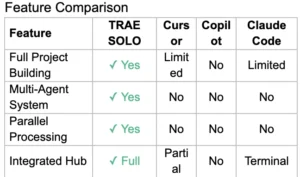
Key takeaway: TRAE SOLO Mode offers capabilities that simply aren’t available in other tools—particularly the multi-agent system and parallel task processing—all at no cost.
How to Get Started with TRAE SOLO Mode
Getting started with TRAE SOLO Mode is straightforward. Here’s a step-by-step guide:
- Download TRAE: Visit the official TRAE website and download the IDE for your operating system (Windows, Mac, or Linux).
- Install and launch: Follow the installation prompts. The setup process is similar to other modern IDEs.
- Open your project: Launch TRAE and open an existing project or create a new one. SOLO Mode will automatically analyze your project structure.
- Switch to SOLO Mode: Access SOLO Mode from the interface. You’ll have access to both Solo Coder and Solo Builder.
- Write your first prompt: Describe what you want to build or fix in natural language. Be specific about requirements, technical details, and desired outcomes.
- Review and execute: SOLO generates an implementation plan. Review it, make any adjustments, then execute.
Tips for Better Results
- Be detailed: The more context you provide, the better the output
- Use agents: Create custom agents for tasks you do repeatedly
- Iterate: If results aren’t perfect, describe what needs to change
- Leverage parallel processing: Queue multiple tasks when possible
Who Should Use TRAE SOLO Mode?
TRAE SOLO Mode is particularly well-suited for:
- Solo developers who want to build full applications faster
- Small teams looking to accelerate development cycles
- Agencies handling multiple client projects simultaneously
- Developers learning new frameworks who want guidance while building
- Anyone frustrated by tool-switching between IDE, terminal, browser, and docs
Conclusion: Is TRAE SOLO Mode Worth Trying?
TRAE SOLO Mode represents a significant evolution in AI-assisted development. Rather than just suggesting code, it acts as a genuine development partner capable of understanding entire projects and executing complex tasks autonomously.
The combination of full project understanding, multi-agent systems, and parallel task processing sets it apart from traditional AI coding assistants. And with no cost to get started, there’s little barrier to testing whether it fits your workflow.
Whether you’re a solo developer looking to ship faster or a team lead evaluating tools to boost productivity, TRAE SOLO Mode deserves a spot on your radar in 2025.
If you want to watch this video, it’s available on our channel! We’ve covered everything step-by-step with live demonstrations.
Watch the Video on Our YouTube Channel
To learn more about technology, AI tools, coding tutorials, and the latest tech trends, visit our website!
If you found this guide helpful, don’t forget to share it with fellow developers!
Frequently Asked Questions (FAQs)
Is TRAE SOLO Mode really free?
Yes, TRAE can be downloaded and used at no cost. Check the official website for any premium features or usage limits that may apply to specific capabilities.
What programming languages does SOLO Mode support?
SOLO Mode supports multiple languages and frameworks, with particular strength in JavaScript/TypeScript ecosystems including React, Next.js, Vue, and Node.js. Support for other languages continues to expand.
How does TRAE compare to GitHub Copilot?
While Copilot excels at code completion and inline suggestions, TRAE SOLO Mode takes a different approach—handling entire project workflows from planning to execution across multiple files, with features like multi-agent systems that Copilot doesn’t offer.
Can I use TRAE with existing projects?
Absolutely. Open any existing project in TRAE, and SOLO Mode will analyze and work within your established codebase, respecting your existing code structure and conventions.
Is my code secure with TRAE?
Review TRAE’s privacy policy and terms of service for detailed information about data handling. As with any AI tool, consider your organization’s security requirements before using with sensitive codebases.