
What if you could turn a single idea into a cinematic video—without learning complex editing software? In this comprehensive Flova AI review, I’ll show you exactly how I typed in one idea and, within sixty seconds, had a full storyboard, stunning visuals, and background music ready to go.
Furthermore, the AI video generation landscape has exploded in 2025, with dozens of tools promising to revolutionize content creation. However, most fall short of their promises. Flova AI is different—and I’m going to prove it to you.
Throughout this in-depth review, you’ll discover why Flova AI has quickly become my go-to tool for video creation. Additionally, I’ll walk you through every feature, share my honest experience creating a Starbucks Christmas ad from scratch, and help you decide if this AI video generator is right for your needs.
What is Flova AI?
Flova AI is an all-in-one AI video agent that functions like having a full creative team at your fingertips. Essentially, it’s a text-based creative studio that lets you create cinematic short films through natural conversations with AI.
Unlike traditional video editing software, Flova breaks video production into intuitive stages: story outlining, visual planning, storyboard design, shot control, and even background music generation. Consequently, you stay in control at every step while the AI handles the heavy lifting.
Think of it as having a director, cinematographer, editor, and composer—all powered by artificial intelligence—working together to bring your vision to life. Moreover, you don’t need any technical expertise to get professional results.
What Makes Flova AI Different?
- Conversational Interface: Create videos by simply describing what you want
- Multi-Model Integration: Access to Sora 2, Kling 2.5, VEO 3.1, and more
- End-to-End Production: From idea to export in one platform
- Professional Timeline Editor: Fine-tune every detail
- Branch Versioning: Explore creative alternatives without losing work
Key Features of Flova AI That Set It Apart
After extensively testing Flova AI for this review, several features genuinely impressed me. Here’s a detailed breakdown of what makes this AI video generator stand out from the competition.
1. Intelligent Prompt Translation
Here’s what genuinely surprised me: you don’t need to be a prompt engineer to get professional results. I simply typed in natural language—exactly how I would explain my idea to a friend.
Subsequently, Flova intelligently translates your input into specialized, professional-grade prompts in the background. As a result, you only need to refine and adjust the output rather than wrestling with complex prompt structures.
2. Automatic Storyboard Generation
After creating the creative brief, Flova ai automatically suggested a scene-by-scene storyboard with:
- Narrative direction for each scene
- Emotional tone mapping
- Visual style recommendations
- Shot types (wide, medium, close-up)
- Timing and pacing suggestions
It’s like having a director built right into the process. Notably, these suggestions were exactly what I had in mind—and they appeared in no time!
3. Multi-Model Path Intelligence
This is where Flova truly shines. The platform analyzes each scene and automatically picks the best AI model for the job—no guesswork on your end.
So if you’re not sure which model works best for a particular scene, don’t worry. Flova figures it out for you. Additionally, the generated images are stunning and match exactly what I had envisioned.
4. “More Like This” Learning Feature
Once you’re satisfied with certain results, you can mark images as “More like this.” In future creations, these liked images will be prioritized as reference material. Consequently, this minimizes the effort needed for selection and helps maintain visual consistency.
Furthermore, a unique feature that surprised me: you can reference a specific asset, and it can be used anywhere throughout the entire storyboard.
5. Branch Feature for Creative Exploration
Here’s a question: what happens when you’re halfway through a project and want to try a completely different direction? With most tools, you’d have to start over.
Flova’s Branch feature lets you jump back to any moment and create alternate versions—without losing your original work. If your story starts drifting because of too much context, the “Back to this moment” option snaps it back instantly, cleaning the context and focusing the AI exactly where you want.
6. Professional Voiceover & Music Integration
By the way, Flova is also connected with ElevenLabs and Dubbing AI for professional voiceovers that perfectly match the warmth of each scene. For music, it integrates with Suno AI to generate original soundtracks.
7. Built-In Timeline Editor
Once all your scenes are generated, Flova composes the full video—visuals, music, narration—everything on multiple tracks, directly opening in a clean, simple, and fast timeline.
You can cut clips, adjust speeds, tweak audio levels, and polish every detail, all within the same workspace. Moreover, if you want to continue editing in Premiere or Final Cut, you can simply export the project file.
How to Use Flova AI: Step-by-Step Tutorial
Let me walk you through my experience creating a Starbucks Christmas ad from scratch. This step-by-step guide will show you exactly how to use Flova AI for your own projects.
Step 1: Sign Up and Access the Dashboard
Getting started takes seconds—just sign up using the link . Once inside, you’ll find a clean interface packed with AI models for images, video, music, and narration—all working together seamlessly.
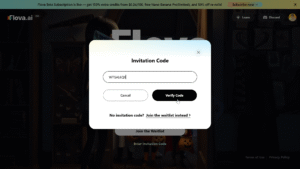
Step 2: Create a New Project
Click “New Project” and simply type in your idea using natural language. For my Starbucks ad, I described the concept, target audience, and desired mood—just like explaining it to a creative partner.
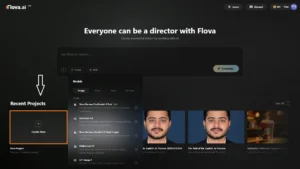
Step 3: Configure Technical Settings
Before developing the full storyboard, Flova confirms a few technical details:
- Video Duration: 30 seconds
- Resolution: 16:9 (landscape)
- Language: English
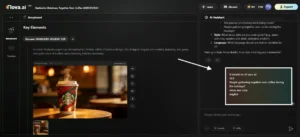
Step 4: Review and Customize Storyboard
The AI generates a complete storyboard with visual descriptions for each scene. Here, you can edit prompts, choose specific models, or regenerate images that don’t match your vision.
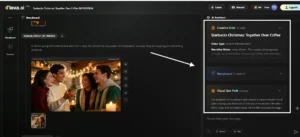
Step 5: Generate Video Scenes
Now that visuals are aligned with the narration, it’s time to convert them into scenes. Flova automatically matches and recommends the best video model for each scene—making it incredibly beginner-friendly.
Step 6: Add Voiceover and Music
Select from professional AI voices via ElevenLabs integration, then let Suno AI generate a custom soundtrack that matches your video’s mood.
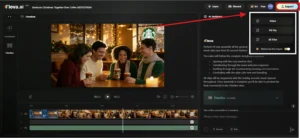
Step 7: Fine-Tune in Timeline Editor
The built-in timeline editor lets you make final adjustments. Cut clips, adjust timing, balance audio levels—everything you need for a polished final product.
Step 8: Export Your Video
Finally, export as MP4 for immediate use, or export the project file to continue editing in Premiere Pro or Final Cut Pro.
Flova AI Video Generation Models
One of Flova’s greatest strengths is its integration with multiple cutting-edge video generation models. Here’s what’s available:
| Model | Best For | Key Strength |
|---|---|---|
| VEO 3.1 Fast | Quick iterations | Speed & efficiency |
| Sora 2 | Cinematic quality | Photorealistic output |
| Kling 2.5 | Motion complexity | Smooth animations |
| Wan 2.5 | Stylized content | Artistic flexibility |
| Vidu 2.0 Q | Balanced quality | Versatility |
Important: Flova automatically recommends the best model for each scene based on your requirements. However, if you want more control, you can specify which model to use right in the chat. Flova understands you like a true creative assistant.
Flova AI Pros and Cons: Honest Assessment
After thoroughly testing Flova AI, here’s my honest evaluation of its strengths and limitations.
✅ Pros
- Intuitive Natural Language Interface: No prompt engineering required
- Multi-Model Access: Best-in-class AI models all in one place
- Automatic Model Selection: AI chooses optimal model per scene
- Branch Versioning: Explore alternatives without losing work
- Professional Integrations: ElevenLabs, Suno AI, and more
- Built-In Timeline Editor: No need for external editing software
- Export Flexibility: MP4 or project files for Premiere/Final Cut
- Generous Free Credits: 500 weekly credits (1,000 with invite code)
- Learning Feature: “More like this” improves future results
❌ Cons
- Limited Beta Access: Currently invite-only
- Learning Curve: Some features require experimentation to master
- Credit Consumption: Complex videos can use credits quickly
- Internet Dependent: Requires stable connection for generation
Flova AI Pricing & How to Get Free Credits
Currently, Flova AI is in limited beta with a generous free tier. Here’s how the credit system works:
Free Tier Benefits
- 500 weekly free credits for all beta users
- Bonus 500 credits with exclusive invite code (see below)
- Full access to all AI models
- No credit card required to start
Flova AI vs. Competitors: How Does It Compare?
Let’s see how Flova AI stacks up against other popular AI video generators in 2025:
| Feature | Flova AI | Runway | Pika | Synthesia |
|---|---|---|---|---|
| Multi-Model | ✓ 6+ models | 1 model | 1 model | Avatar only |
| Storyboard | ✓ Auto | Manual | None | Basic |
| Branch Feature | ✓ Yes | No | No | No |
| Timeline Editor | ✓ Built-in | Basic | None | Basic |
| AI Music | ✓ Suno AI | No | No | Library |
| Free Tier | ✓ 500/week | Limited | Limited | No |
Key Takeaway: While competitors focus on single aspects (Runway on quality, Pika on accessibility), Flova provides the most comprehensive end-to-end solution with its multi-model approach and full production pipeline.
Who Should Use Flova AI?
Based on my experience, Flova AI is ideal for:
Content Creators & YouTubers
If you need to produce video content regularly, Flova dramatically reduces production time. Create intros, B-roll, explainer videos, and more without expensive equipment or editing skills.
Marketing Teams & Agencies
Produce ad concepts, social media content, and promotional videos at scale. The branch feature is perfect for creating multiple versions for A/B testing.
Small Business Owners
Create professional video content without hiring a production team. Perfect for product demos, explainers, and brand videos.
Filmmakers & Creative Professionals
Use Flova for pre-visualization, concept development, and rapid prototyping. Export to professional editing software for final production.
Final Verdict: Is Flova AI Worth It?
To be honest, using Flova for my project made the workflow feel smoother than I expected. It genuinely cut my editing time down significantly.
Here’s my bottom line: Flova AI isn’t just another AI video generator—it’s a complete creative studio. The combination of multi-model integration, real-time editing, AI that learns your taste, branch versioning, and professional export options makes it stand out in a crowded market.
For anyone serious about video content creation, Flova AI deserves serious consideration. The free tier makes it easy to test, and the exclusive invite code sweetens the deal.
Ready to try Flova AI? Sign up now and use code W7GAL6QX for 500 free credits!
If you want to see my complete project and watch Flova AI in action, check out my video where I demonstrate the entire process from start to finish.
If you want to learn more about technology, AI tools, and digital creation, visit our website.
Frequently Asked Questions (FAQs)
Is Flova AI free to use?
Yes, Flova AI currently offers 500 weekly free credits during its limited beta. Using an exclusive invite code doubles this to 1,000 credits. No credit card is required to start.
What video models does Flova AI support?
Flova AI integrates with multiple cutting-edge models including VEO 3.1 Fast, Sora 2, Kling 2.5, Wan 2.5, Vidu 2.0 Q, and more. The platform automatically recommends the best model for each scene.
Do I need video editing experience to use Flova AI?
No. Flova AI is designed for beginners and professionals alike. The natural language interface means you can describe what you want in plain English. However, the built-in timeline editor provides advanced control for those who want it.
Can I export Flova AI projects to Premiere Pro or Final Cut?
Yes. In addition to MP4 export, Flova allows you to export project files compatible with professional editing software like Adobe Premiere Pro and Final Cut Pro.
Is Flova AI better than Runway or Pika?
Each tool has strengths. Runway excels in video quality, Pika in accessibility. However, Flova offers the most comprehensive end-to-end solution with multi-model access, full production pipeline, and professional integrations—making it the best all-in-one option.
How long does it take to generate a video with Flova AI?
Generation time varies based on video length and complexity. A 30-second video typically takes 5-10 minutes for complete generation including storyboard, visuals, video scenes, and audio. Simpler projects can be ready in just a few minutes.